
What is Video Text Remover?
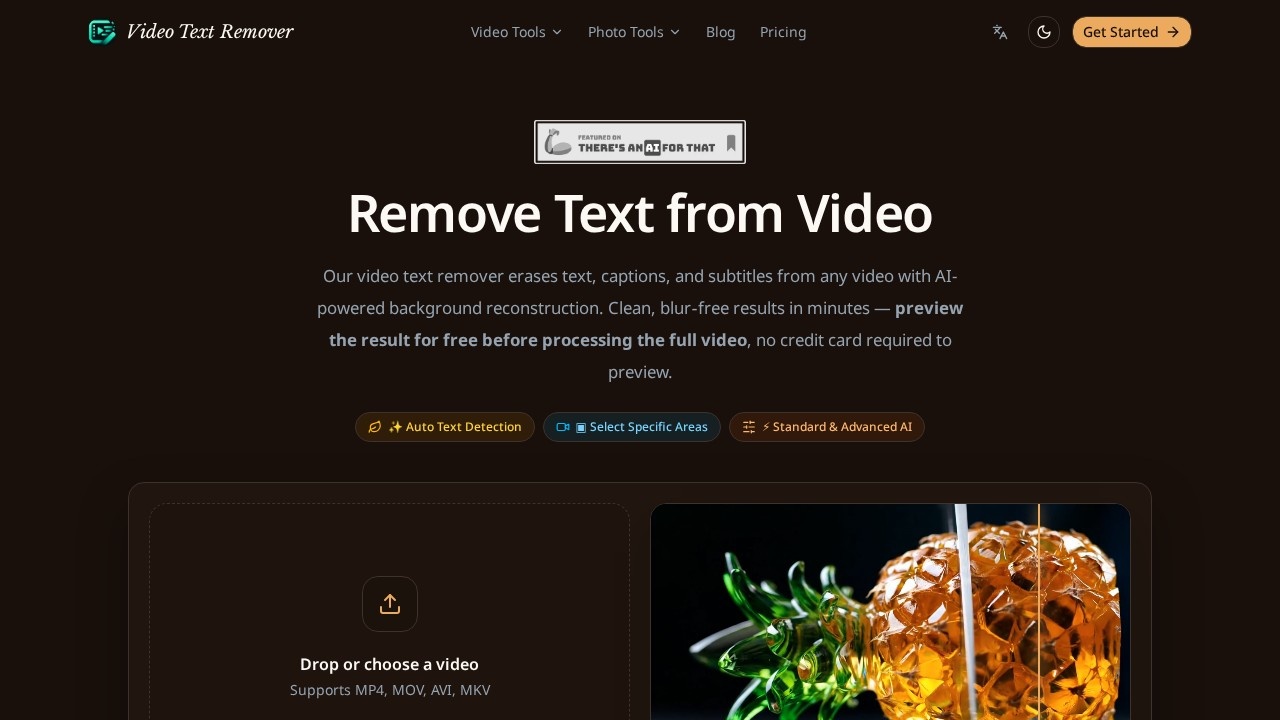
Video Text Remover is an AI-powered video editing tool that erases text, captions, subtitles, watermarks, and logos from existing footage. Instead of blurring or cropping over an overlay, it reconstructs the background behind the text so the cleaned frame looks natural. The tool runs in your browser, accepts MP4, MOV, AVI, and MKV files, and needs no software install or plugins. You can preview a result for free before processing the full video.
Application scenarios
Social media cleanup
Strip TikTok text stickers, usernames, and caption overlays from clips without cropping the frame or blurring the image.
Stock footage preparation
Remove burned-in subtitles, timestamps, and stock preview stamps from licensed clips before editing them into a project.
Brand and channel content
Delete corner logos, channel marks, and app export watermarks from footage you own.
Subtitle replacement
Clean hardcoded captions that cannot be switched off, then add your own captions in a new language or style.
Archival and repurposing
Reuse older recordings that carry legacy overlays, screen recorder logos, or export stamps.
AI video post-processing
Remove supported visible Gemini and Veo watermarks from generated videos.
Core Features
Auto text detection
The AI scans each frame and locates text regions automatically, so you do not have to hunt for every caption or timestamp by hand.
Manual area selection
Box a specific region when you know exactly where the overlay sits — useful for custom logos and one-off text placements.
Standard and Advanced AI modes
Choose between two processing levels depending on how complex the overlay and background are.
Background reconstruction
Text is replaced with rebuilt background detail rather than a blur patch, which avoids ghosting and patchy artifacts.
Six dedicated workflows
Pick the tool that matches your overlay — Video Text Remover, Remove Logo from Video, Remove Captions & Subtitles, Remove Watermark from Video, TikTok Text Remover, or Gemini Watermark Remover.
Logo libraries
The logo remover includes auto logo libraries for common marks, plus manual box selection for anything custom.
TikTok overlay cleaning
Remove TikTok video overlays, usernames, and text stickers without cropping or blurring the clip.
Gemini and Veo watermark removal
Automatic detection of supported visible Gemini and Veo marks, processed locally in the browser with no upload, account, or credits required.
Free preview before processing
See the cleaned result on your own footage before spending time on a full render.
Clean export
Download in the original resolution and frame rate, with no watermark added and no compression.
Format and size support
MP4, MOV, AVI, and MKV files up to 500MB, handled entirely in the browser.
Target users
- Content creators and TikTokers cleaning up clips before reposting or editing.
- Video editors stripping burned-in subtitles and stock preview stamps from source footage.
- Social media managers preparing brand-safe cuts from existing material.
- Marketing teams removing legacy logos and app export watermarks from campaign assets.
- Educators and course creators clearing captions from lecture or screen-recorded video.
- AI video users who need supported Gemini and Veo watermarks gone before publishing.
How to use Video Text Remover?
- Open videotextremover.org and pick the workflow matching your overlay — general text, logo, subtitles, watermark, TikTok text, or Gemini mark.
- Drag and drop your MP4, MOV, AVI, or MKV file, or choose it from the upload box. Files up to 500MB are supported.
- Let the AI detect and reconstruct: it scans each frame, finds text regions, and rebuilds the background behind them.
- Sign in to preview the result free of charge before running the full video — no credit card required to preview.
- Process the full clip, then download it in the original resolution and frame rate with no added watermark.
The Gemini watermark tool skips the upload step entirely and processes video locally in the browser, with no account or credits involved.
Pricing and free trial
The site does not publish per-video or subscription prices. What it does state clearly is a free preview tier: you can preview your own result before processing the full video, and no credit card is required to preview. You do need to sign in to access that preview. The Gemini and Veo watermark remover is described as requiring no upload, account, or credits.
Effect review
The core promise here is the one that matters most for this category: background reconstruction instead of a blur patch. Blurring a subtitle strip is easy and always looks like a blur; rebuilding the pixels underneath is the harder problem, and the site is explicit that the output avoids blur, ghosting, and patchy artifacts. The feature set backs that up with practical controls — auto detection for burned-in captions, manual box selection for irregular logos, and two AI modes so simple jobs do not pay for complex ones. The free preview is the smartest part of the design, because it lets you judge quality on your own footage before committing to a full render. Exporting at the original resolution and frame rate, with no added watermark and no compression, removes the usual catch that comes with browser-based editors. If your footage carries hardcoded subtitles, dated stock stamps, or platform overlays, this is a straightforward workflow worth testing on a short clip first.
Frequently Asked Questions
What is Video Text Remover?
How does it remove text without leaving a blur?
Is it free to use?
What types of text can it remove?
How do I use it?
Video Text Remover - AI Tool Detail
Video Text Remover is an AI-powered video editing tool that removes captions, subtitles, and watermarks using background reconstruction, not blur. It lets you preview results for free before processin
Category:Video editing
Visit Link:https://videotextremover.org/