
Discover AI tools. Launch from your browser.
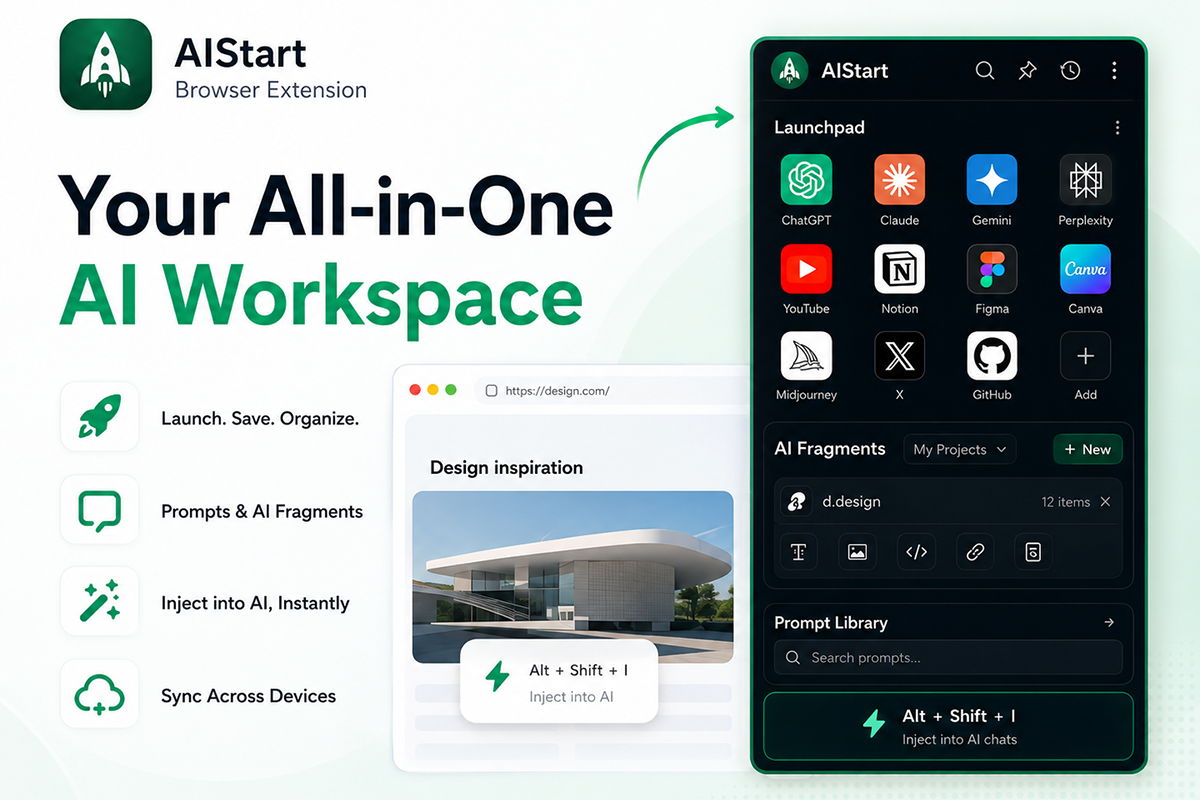
Build your personal launchpad in the side panel — save favorites, inject prompts into ChatGPT / Claude / Gemini.
Version 1.6.4
Sign in on aistart.ai after install — your launchpad syncs everywhere.
What you get
Browser workbench
Discover AI tools and launch from your personal launchpad — save favorites in your aistart.ai side panel while you browse.
Save while you browse
Right-click selected text to save as prompts. Paste auto-detects text, image URLs or code.
Inject prompts
Copy or insert prompts into ChatGPT, Claude or Gemini — no more repeating yourself.
Syncs with aistart.ai
Sign in on aistart.ai — launchpad and prompts stay in sync across devices and the website.
Import browser bookmarks
Migrate existing bookmarks into your launchpad in one step. Already-saved URLs are skipped automatically.
- 1In your browser, export bookmarks as an HTML file (Chrome: Bookmark manager → ⋮ → Export).
- 2Open the AIStart extension side panel and click the import icon in the launchpad header (next to Edit).
- 3Select the HTML file — new links are added to your launchpad and sync to the cloud when signed in.
Install (developer / beta)
- 1Download the ZIP and unzip the folder (e.g. aistart-extension/).
- 2Open Chrome and go to chrome://extensions
- 3Enable Developer mode (top right).
- 4Click Load unpacked and select the unzipped folder.
- 5Pin AIStart, open the side panel from the toolbar, sign in on aistart.ai, then save any site.
Shortcuts
After install or update, open chrome://extensions/shortcuts to confirm bindings. Refresh open tabs before using shortcuts.
- Alt Shift I
Insert prompt on ChatGPT / Claude (⌥⇧I on Mac)
- Alt P
Open prompt command bar
- Alt Shift S
Save current page to launchpad
FAQ
- Is it on the Chrome Web Store?
- Store listing is in progress. Install from the ZIP on this page (Load unpacked) for now.
- How do prompts work?
- Save selected text as prompts from any page, or create them in the side panel. Categorize, search, and inject into ChatGPT / Claude.
- Do I need to sign in?
- Works locally without an account. Sign in on aistart.ai to sync launchpad and prompts across devices and the website.
- How does context injection work?
- On supported chat sites, click the floating button or press Alt+Shift+I, pick a prompt, and it is inserted into the input box.
- Which browsers are supported?
- Chrome and Chromium browsers (Edge, Brave, etc.) with Manifest V3.
Privacy
Communicates with aistart.ai when signed in. Reads page title, URL, and your selections only to save favorites and prompts. No selling of page content.